
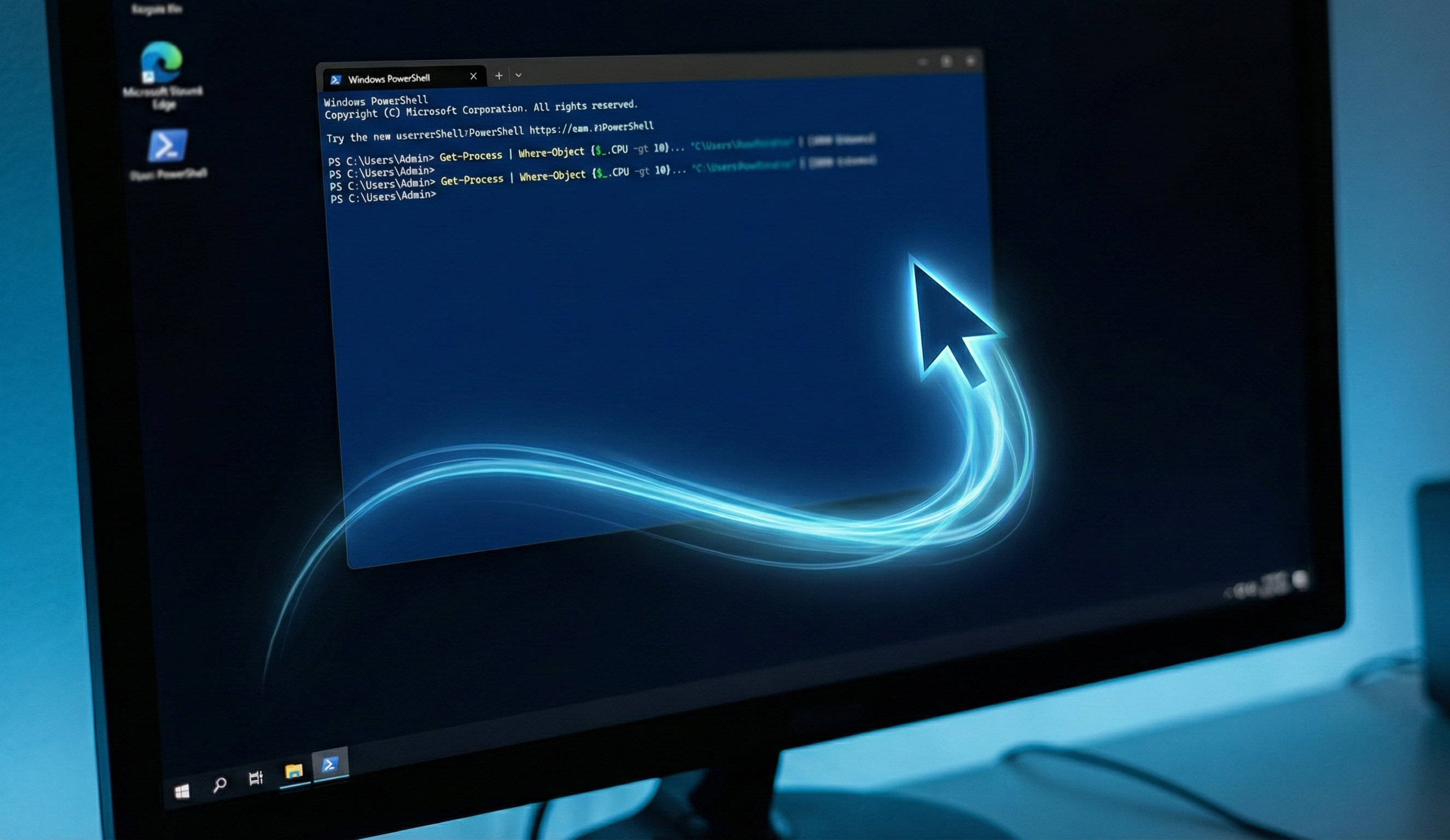
You're staring at a Citrix session. The application you need to automate was written in 2004. There's no API. There's no COM interface. There's no command-line tool. There's a GUI with buttons, and that's it.
Welcome to the real world.
I've spent 25+ years in infrastructure, and I can tell you that the glossy "API-first" world the industry keeps promising is still a fantasy for huge chunks of enterprise IT. Legacy ERP systems, locked-down RDP sessions, Java applets that somehow still exist, insurance platforms built on Visual Basic 6 -- these things don't care about your REST endpoints. They have buttons. They have text fields. They have dropdown menus rendered as bitmaps on a screen.
And sometimes, the only way to automate them is to move the mouse and click.
Before you recoil in horror -- yes, I know. Pixel-based automation is fragile. It's the duct tape of the automation world. But duct tape holds the International Space Station together, so maybe show it some respect.
In this guide, I'm going to show you how to build serious cursor and GUI automation using nothing but PowerShell and the .NET assemblies already sitting on every Windows machine. No UIPath license. No Power Automate Desktop subscription. No third-party dependencies. Just PowerShell, the Win32 API, and a healthy disregard for people who say "just use the API."
Table of Contents
- Why Pixel-Based Automation Still Matters
- The Citrix Problem
- Locked-Down Corporate Environments
- RDP Sessions and Jump Boxes
- The Keep-Alive Use Case
- Loading the .NET Assemblies
- Moving the Cursor
- The Teleport Approach
- Smooth Movement with Interpolation
- Simulating Clicks
- The mouse_event Approach
- The SendInput Alternative
- Sending Keystrokes with SendKeys
- Screen Coordinate Discovery
- Manual Discovery with a Coordinate Tracker
- A Better Coordinate Capture Tool
- Getting Window Positions Programmatically
- Multi-Monitor Handling
- Building a Complete GUI Automation Framework
- Error Handling and Recovery Patterns
- Retry Logic
- Window Verification
- Screenshot on Failure
- The Keep-Alive Script (Done Right)
- Real Production Use Cases
- Legacy Invoice Processing in Citrix
- Automated Smoke Testing for a Desktop Application
- Multi-Session RDP Keep-Alive During Maintenance Windows
- Comparison with Dedicated RPA Tools
- Security Considerations
- When NOT to Use This Approach
- Summary
Why Pixel-Based Automation Still Matters
Let's get this out of the way first: API-based automation is always better when it's available. If you can hit an endpoint, query a database, or call a COM object, do that. Every time. No question.
But here's the thing -- you often can't.
The Citrix Problem
Citrix environments are the single biggest reason pixel-based automation refuses to die. When you're automating through a Citrix session, you're not interacting with a real application. You're interacting with a picture of an application being streamed to your screen. The actual app is running on a server somewhere, and all you have is a bitmap representation of its UI.
There's no DOM to query. There's no accessibility tree (or if there is, it's the Citrix viewer's accessibility tree, not the remote application's). UIAutomation doesn't reach through the Citrix barrier. You get pixels, and that's all you get.
Locked-Down Corporate Environments
Try installing UIPath on a Fortune 500 company's workstation without going through six months of procurement and security review. I'll wait.
Meanwhile, PowerShell is already there. It's already approved. It's already in the PATH. Every Windows machine since Server 2008 R2 has shipped with it. You don't need to install anything, request anything, or justify anything. You open a terminal and start typing.
RDP Sessions and Jump Boxes
If you've ever tried to automate something through a chain of RDP sessions -- your machine to a jump box to a production server -- you know that most automation tools lose their minds. Selenium doesn't work. UIPath gets confused about which session it's controlling. But raw cursor movement? That works everywhere because it operates at the lowest possible level: "put the pointer here, press this button."
The Keep-Alive Use Case
This is the one everyone starts with, and there's no shame in it. Your corporate VPN disconnects after 10 minutes of inactivity. Your Citrix session times out. Your RDP connection drops. You're in a 3-hour change window at 2 AM and you need to keep six different sessions alive while you work in one of them.
A 10-line PowerShell script that wiggles the mouse is worth more than a thousand-dollar automation platform in that moment.
Loading the .NET Assemblies
Everything we're about to do depends on two .NET assemblies that ship with every Windows installation. Let's load them and understand what each one gives us.
# System.Windows.Forms gives us cursor control, SendKeys, and screen info
Add-Type -AssemblyName System.Windows.Forms

# System.Drawing gives us the Point struct for coordinates
Add-Type -AssemblyName System.Drawing
That's it. Two lines. You now have access to:
[System.Windows.Forms.Cursor]-- Read and set the cursor position[System.Windows.Forms.Screen]-- Enumerate monitors, get resolutions, find working areas[System.Windows.Forms.SendKeys]-- Send keystrokes to the active window[System.Drawing.Point]-- Represent X,Y coordinates
On PowerShell 5.1 (Windows PowerShell), these assemblies load without any fuss. On PowerShell 7+ (PowerShell Core), you might hit a snag because Core doesn't automatically include Windows Forms. If you get an error, you need to make sure you're running the Windows-compatible version:
# Check your PowerShell version
$PSVersionTable.PSVersion

# If on PS 7+ and the assembly fails to load, install the compatibility module
# or simply use Windows PowerShell (powershell.exe, not pwsh.exe) for GUI automation
My recommendation: use powershell.exe (Windows PowerShell 5.1) for all GUI automation work. It just works. Save pwsh for your API calls and cloud scripting.
Moving the Cursor
The Teleport Approach
The simplest way to move the cursor is to set its position directly:
# Teleport the cursor to coordinates (500, 500)
[System.Windows.Forms.Cursor]::Position = New-Object System.Drawing.Point(500, 500)
This is instant. One frame, the cursor is wherever it was. Next frame, it's at (500, 500). No animation, no transition, no in-between.
For most automation tasks, this is fine. The application doesn't care how the cursor got there -- it only cares where the cursor is when you click.
But sometimes teleportation causes problems. Some applications track mouse movement events and won't register a click unless they've seen the cursor enter their window through a WM_MOUSEMOVE message. Old Java applets are notorious for this. Some Citrix-published applications behave differently too, because the Citrix ICA protocol optimizes mouse movement and can drop a teleported cursor event.
Smooth Movement with Interpolation
When you need the cursor to actually travel from point A to point B, you interpolate between them:
function Move-CursorSmooth {
    param(
        [int]$TargetX,
        [int]$TargetY,
        [int]$Steps = 20,
        [int]$DelayMs = 10
    )

    $start = [System.Windows.Forms.Cursor]::Position
    $startX = $start.X
    $startY = $start.Y

    for ($i = 1; $i -le $Steps; $i++) {
        $progress = $i / $Steps

        # Linear interpolation
        $currentX = [int]($startX + ($TargetX - $startX) * $progress)
        $currentY = [int]($startY + ($TargetY - $startY) * $progress)

        [System.Windows.Forms.Cursor]::Position = New-Object System.Drawing.Point($currentX, $currentY)
        Start-Sleep -Milliseconds $DelayMs
    }
}

# Usage: smoothly move to (800, 600) over 20 steps
Move-CursorSmooth -TargetX 800 -TargetY 600
This creates a straight-line path from the current position to the target. The cursor visibly slides across the screen. Takes about 200ms with the default settings, which feels natural.
Want it to feel even more human? Add easing. Real humans don't move the mouse in a perfectly linear path -- they accelerate at the start and decelerate at the end:
function Move-CursorEased {
    param(
        [int]$TargetX,
        [int]$TargetY,
        [int]$Steps = 30,
        [int]$DelayMs = 10
    )

    $start = [System.Windows.Forms.Cursor]::Position
    $startX = $start.X
    $startY = $start.Y

    for ($i = 1; $i -le $Steps; $i++) {
        $t = $i / $Steps

        # Ease-in-out using smoothstep: 3t^2 - 2t^3
        $progress = (3 * [Math]::Pow($t, 2)) - (2 * [Math]::Pow($t, 3))

        $currentX = [int]($startX + ($TargetX - $startX) * $progress)
        $currentY = [int]($startY + ($TargetY - $startY) * $progress)

        [System.Windows.Forms.Cursor]::Position = New-Object System.Drawing.Point($currentX, $currentY)
        Start-Sleep -Milliseconds $DelayMs
    }
}
Why would you bother with easing? Two reasons. First, some anti-automation detection systems (yes, they exist in enterprise software) flag perfectly linear mouse movements. Second, if you're recording a demo or training video, eased movement looks professional instead of robotic.
Simulating Clicks
Moving the cursor is only half the battle. You also need to click things. And this is where we leave the comfortable world of .NET and step into Win32 API territory.
The mouse_event Approach
Windows exposes the mouse_event function through user32.dll. We need to use P/Invoke to call it from PowerShell:
# Define the Win32 mouse_event function
$mouseEventSignature = @"
[DllImport("user32.dll", CharSet = CharSet.Auto, CallingConvention = CallingConvention.StdCall)]
public static extern void mouse_event(uint dwFlags, uint dx, uint dy, uint cButtons, uint dwExtraInfo);
"@

$Mouse = Add-Type -MemberDefinition $mouseEventSignature -Name "Win32MouseEvent" -Namespace Win32Functions -PassThru

# Mouse event constants
$MOUSEEVENTF_LEFTDOWN   = 0x0002
$MOUSEEVENTF_LEFTUP     = 0x0004
$MOUSEEVENTF_RIGHTDOWN  = 0x0008
$MOUSEEVENTF_RIGHTUP    = 0x0010
$MOUSEEVENTF_MIDDLEDOWN = 0x0020
$MOUSEEVENTF_MIDDLEUP   = 0x0040
Notice I'm using uint (unsigned 32-bit integer) for the parameters, not long. The original Win32 API uses DWORD, which maps to uint in C#. Using long (64-bit) can cause subtle issues on some systems, especially when running in 32-bit PowerShell sessions.
Now let's build click functions:
function Send-LeftClick {
    $Mouse::mouse_event($MOUSEEVENTF_LEFTDOWN, 0, 0, 0, 0)
    Start-Sleep -Milliseconds 50
    $Mouse::mouse_event($MOUSEEVENTF_LEFTUP, 0, 0, 0, 0)
}

function Send-RightClick {
    $Mouse::mouse_event($MOUSEEVENTF_RIGHTDOWN, 0, 0, 0, 0)
    Start-Sleep -Milliseconds 50
    $Mouse::mouse_event($MOUSEEVENTF_RIGHTUP, 0, 0, 0, 0)
}

function Send-DoubleClick {
    Send-LeftClick
    Start-Sleep -Milliseconds 80
    Send-LeftClick
}

function Send-ClickAt {
    param(
        [int]$X,
        [int]$Y,
        [ValidateSet("Left", "Right", "Double")]
        [string]$Button = "Left"
    )

    [System.Windows.Forms.Cursor]::Position = New-Object System.Drawing.Point($X, $Y)
    Start-Sleep -Milliseconds 50  # Let the cursor settle

    switch ($Button) {
        "Left"   { Send-LeftClick }
        "Right"  { Send-RightClick }
        "Double" { Send-DoubleClick }
    }
}
That Start-Sleep -Milliseconds 50 between the mouse-down and mouse-up events is important. Some applications don't register a click if the down and up events arrive in the same message pump cycle. 50 milliseconds is fast enough that a human would never notice, but slow enough that even the most sluggish Win32 message loop will process both events.
The SendInput Alternative
mouse_event is technically deprecated by Microsoft in favor of SendInput. If you want to be future-proof (and you're the kind of person who worries about deprecated Win32 functions, which means you might also worry about the heat death of the universe), here's the SendInput version:
$sendInputCode = @"
using System;
using System.Runtime.InteropServices;

public struct INPUT {
    public int type;
    public MOUSEINPUT mi;
}

[StructLayout(LayoutKind.Sequential)]
public struct MOUSEINPUT {
    public int dx;
    public int dy;
    public uint mouseData;
    public uint dwFlags;
    public uint time;
    public IntPtr dwExtraInfo;
}

public class Win32SendInput {
    [DllImport("user32.dll", SetLastError = true)]
    public static extern uint SendInput(uint nInputs, INPUT[] pInputs, int cbSize);

    public const int INPUT_MOUSE = 0;
    public const uint MOUSEEVENTF_LEFTDOWN = 0x0002;
    public const uint MOUSEEVENTF_LEFTUP = 0x0004;

    public static void LeftClick() {
        INPUT[] inputs = new INPUT[2];

        inputs[0].type = INPUT_MOUSE;
        inputs[0].mi.dwFlags = MOUSEEVENTF_LEFTDOWN;

        inputs[1].type = INPUT_MOUSE;
        inputs[1].mi.dwFlags = MOUSEEVENTF_LEFTUP;

        SendInput(2, inputs, Marshal.SizeOf(typeof(INPUT)));
    }
}
"@

Add-Type -TypeDefinition $sendInputCode
[Win32SendInput]::LeftClick()
More code, more ceremony, same result. But SendInput is what professional automation tools use under the hood, and it handles UIPI (User Interface Privilege Isolation) better than mouse_event.
Sending Keystrokes with SendKeys
Mouse automation is only part of the picture. Most GUI workflows involve typing too -- filling in forms, entering search terms, pressing keyboard shortcuts. PowerShell's SendKeys class handles this.
# Send plain text to the active window
[System.Windows.Forms.SendKeys]::SendWait("Hello, World!")

# Send special keys using key codes
[System.Windows.Forms.SendKeys]::SendWait("{ENTER}")
[System.Windows.Forms.SendKeys]::SendWait("{TAB}")
[System.Windows.Forms.SendKeys]::SendWait("{ESCAPE}")
[System.Windows.Forms.SendKeys]::SendWait("{BACKSPACE}")

# Modifier keys
[System.Windows.Forms.SendKeys]::SendWait("^c")     # Ctrl+C
[System.Windows.Forms.SendKeys]::SendWait("^v")     # Ctrl+V
[System.Windows.Forms.SendKeys]::SendWait("^a")     # Ctrl+A
[System.Windows.Forms.SendKeys]::SendWait("%{F4}")   # Alt+F4
[System.Windows.Forms.SendKeys]::SendWait("+{TAB}")  # Shift+Tab

# Repeat a key
[System.Windows.Forms.SendKeys]::SendWait("{DOWN 5}")  # Press Down arrow 5 times
The modifier key syntax is: ^ for Ctrl, % for Alt, + for Shift. Wrap special keys in braces.
There's a critical distinction between SendWait and Send. SendWait blocks until the target application processes the keystroke. Send fires and forgets. For automation, always use SendWait unless you have a specific reason not to -- it prevents race conditions where you're sending keystrokes faster than the application can consume them.
Here's a practical example -- automating a login form:
function Invoke-AutomatedLogin {
    param(
        [int]$UsernameFieldX,
        [int]$UsernameFieldY,
        [string]$Username,
        [int]$PasswordFieldX,
        [int]$PasswordFieldY,
        [string]$Password,
        [int]$LoginButtonX,
        [int]$LoginButtonY
    )

    # Click the username field
    Send-ClickAt -X $UsernameFieldX -Y $UsernameFieldY
    Start-Sleep -Milliseconds 200

    # Clear any existing text and type username
    [System.Windows.Forms.SendKeys]::SendWait("^a")
    Start-Sleep -Milliseconds 50
    [System.Windows.Forms.SendKeys]::SendWait($Username)
    Start-Sleep -Milliseconds 200

    # Click the password field
    Send-ClickAt -X $PasswordFieldX -Y $PasswordFieldY
    Start-Sleep -Milliseconds 200

    # Type password
    [System.Windows.Forms.SendKeys]::SendWait("^a")
    Start-Sleep -Milliseconds 50
    [System.Windows.Forms.SendKeys]::SendWait($Password)
    Start-Sleep -Milliseconds 200

    # Click login
    Send-ClickAt -X $LoginButtonX -Y $LoginButtonY
}
A word of warning about SendKeys: it sends keystrokes to whatever window is currently active. If a notification pops up or the user clicks somewhere else mid-automation, your keystrokes go to the wrong window. We'll address this in the error handling section.
Screen Coordinate Discovery
The hardest part of pixel-based automation isn't writing the code -- it's figuring out the coordinates. Where exactly is that button? What pixel position is the username field at?
Manual Discovery with a Coordinate Tracker
Here's a script that follows your cursor around and reports its position in real-time:
Add-Type -AssemblyName System.Windows.Forms

Write-Host "Move your mouse to the target element and note the coordinates."
Write-Host "Press Ctrl+C to stop."
Write-Host ""

while ($true) {
    $pos = [System.Windows.Forms.Cursor]::Position
    Write-Host "`rX: $($pos.X)  Y: $($pos.Y)    " -NoNewline
    Start-Sleep -Milliseconds 100
}
Run this, hover over the button you want to click, and write down the coordinates. Low-tech but effective.
A Better Coordinate Capture Tool
For serious work, build something that captures coordinates with a hotkey:
Add-Type -AssemblyName System.Windows.Forms

$coordinates = @()
$capturing = $true

Write-Host "=== Coordinate Capture Tool ==="
Write-Host "Press F8 to capture the current cursor position."
Write-Host "Press F9 to finish and display all captured coordinates."
Write-Host ""

while ($capturing) {
    if ([System.Windows.Forms.Control]::IsKeyLocked("F8") -eq $false -and
        [Windows.Forms.Control]::ModifierKeys -eq 'None') {

        # Check for F8 using GetAsyncKeyState
        $f8State = [System.Windows.Forms.UserControl]::MouseButtons
    }

    # Simpler approach: use GetAsyncKeyState via P/Invoke
    Start-Sleep -Milliseconds 50

    $pos = [System.Windows.Forms.Cursor]::Position
    Write-Host "`rCurrent: X=$($pos.X), Y=$($pos.Y)    " -NoNewline
}
Actually, let me give you a more practical version that uses GetAsyncKeyState properly:
Add-Type -AssemblyName System.Windows.Forms

$getKeyState = Add-Type -MemberDefinition @"
[DllImport("user32.dll")]
public static extern short GetAsyncKeyState(int vKey);
"@ -Name "Win32KeyState" -Namespace Win32Functions -PassThru

$VK_F8 = 0x77  # F8
$VK_F9 = 0x78  # F9

$coordinates = [System.Collections.ArrayList]::new()

Write-Host "=== Coordinate Capture Tool ==="
Write-Host "Hover over a target, press F8 to capture its position."
Write-Host "Press F9 when done to export all coordinates."
Write-Host ""

$lastF8 = $false

while ($true) {
    $pos = [System.Windows.Forms.Cursor]::Position
    Write-Host "`rCurrent: X=$($pos.X), Y=$($pos.Y)    " -NoNewline

    $f8Pressed = ($getKeyState::GetAsyncKeyState($VK_F8) -band 0x8000) -ne 0
    $f9Pressed = ($getKeyState::GetAsyncKeyState($VK_F9) -band 0x8000) -ne 0

    # Detect F8 key-down edge (avoid repeat captures)
    if ($f8Pressed -and -not $lastF8) {
        $entry = [PSCustomObject]@{
            Index = $coordinates.Count + 1
            X     = $pos.X
            Y     = $pos.Y
            Time  = Get-Date -Format "HH:mm:ss"
        }
        [void]$coordinates.Add($entry)
        Write-Host ""
        Write-Host "  Captured #$($entry.Index): X=$($entry.X), Y=$($entry.Y)" -ForegroundColor Green
    }
    $lastF8 = $f8Pressed

    if ($f9Pressed) {
        Write-Host ""
        Write-Host ""
        Write-Host "=== Captured Coordinates ===" -ForegroundColor Cyan
        $coordinates | Format-Table -AutoSize
        break
    }

    Start-Sleep -Milliseconds 50
}
Run this before you build your automation. Click through the workflow manually, pressing F8 at each button and field you need to interact with. When you're done, you have a neat table of every coordinate your script needs.
Getting Window Positions Programmatically
Hard-coded coordinates break when windows move. A smarter approach is to find the window first, then calculate offsets relative to it:
$windowFunctions = Add-Type -MemberDefinition @"
[DllImport("user32.dll")]
public static extern IntPtr FindWindow(string lpClassName, string lpWindowName);

[DllImport("user32.dll")]
[return: MarshalAs(UnmanagedType.Bool)]
public static extern bool GetWindowRect(IntPtr hWnd, out RECT lpRect);

[DllImport("user32.dll")]
[return: MarshalAs(UnmanagedType.Bool)]
public static extern bool SetForegroundWindow(IntPtr hWnd);

[StructLayout(LayoutKind.Sequential)]
public struct RECT {
    public int Left;
    public int Top;
    public int Right;
    public int Bottom;
}
"@ -Name "Win32Window" -Namespace Win32Functions -PassThru

function Get-WindowPosition {
    param([string]$WindowTitle)

    $hwnd = $windowFunctions::FindWindow([NullString]::Value, $WindowTitle)
    if ($hwnd -eq [IntPtr]::Zero) {
        Write-Error "Window '$WindowTitle' not found"
        return $null
    }

    $rect = New-Object Win32Functions.RECT
    $windowFunctions::GetWindowRect($hwnd, [ref]$rect) | Out-Null

    return [PSCustomObject]@{
        Handle = $hwnd
        Left   = $rect.Left
        Top    = $rect.Top
        Width  = $rect.Right - $rect.Left
        Height = $rect.Bottom - $rect.Top
    }
}

function Send-ClickAtWindowOffset {
    param(
        [string]$WindowTitle,
        [int]$OffsetX,
        [int]$OffsetY,
        [string]$Button = "Left"
    )

    $win = Get-WindowPosition -WindowTitle $WindowTitle
    if ($null -eq $win) { return }

    # Bring window to foreground
    $windowFunctions::SetForegroundWindow($win.Handle) | Out-Null
    Start-Sleep -Milliseconds 200

    # Calculate absolute coordinates from window-relative offsets
    $absX = $win.Left + $OffsetX
    $absY = $win.Top + $OffsetY

    Send-ClickAt -X $absX -Y $absY -Button $Button
}

# Usage: click 200px right and 150px down from the top-left of Notepad
Send-ClickAtWindowOffset -WindowTitle "Untitled - Notepad" -OffsetX 200 -OffsetY 150
This is a massive improvement over hard-coded coordinates. If the user moves the window, your automation still works because you're calculating positions relative to the window's current location.
Multi-Monitor Handling
Multi-monitor setups are where naive cursor automation falls apart. If you hard-code coordinates assuming a single 1920x1080 display, your script will click in the wrong place the moment someone plugs in a second monitor.
PowerShell gives you full access to monitor information:
# List all monitors
[System.Windows.Forms.Screen]::AllScreens | ForEach-Object {
    [PSCustomObject]@{
        DeviceName = $_.DeviceName
        Primary    = $_.Primary
        Bounds     = "$($_.Bounds.X),$($_.Bounds.Y) ($($_.Bounds.Width)x$($_.Bounds.Height))"
        WorkArea   = "$($_.WorkingArea.X),$($_.WorkingArea.Y) ($($_.WorkingArea.Width)x$($_.WorkingArea.Height))"
    }
} | Format-Table -AutoSize

# Get the primary monitor's resolution
$primary = [System.Windows.Forms.Screen]::PrimaryScreen
Write-Host "Primary monitor: $($primary.Bounds.Width)x$($primary.Bounds.Height)"

# Get the virtual screen (the bounding rectangle of ALL monitors combined)
$virtualWidth = [System.Windows.Forms.SystemInformation]::VirtualScreen.Width
$virtualHeight = [System.Windows.Forms.SystemInformation]::VirtualScreen.Height
Write-Host "Virtual screen: ${virtualWidth}x${virtualHeight}"
The key thing to understand: Windows uses a single coordinate space that spans all monitors. Your primary monitor might be at (0,0) to (1919,1079). A second monitor to the right would be at (1920,0) to (3839,1079). A monitor to the left could have negative coordinates: (-1920,0) to (-1,1079).
Here's a helper that finds which monitor contains a given point:
function Get-MonitorAtPoint {
    param([int]$X, [int]$Y)

    $point = New-Object System.Drawing.Point($X, $Y)
    $screen = [System.Windows.Forms.Screen]::FromPoint($point)

    return [PSCustomObject]@{
        DeviceName = $screen.DeviceName
        Primary    = $screen.Primary
        BoundsX    = $screen.Bounds.X
        BoundsY    = $screen.Bounds.Y
        Width      = $screen.Bounds.Width
        Height     = $screen.Bounds.Height
    }
}

# Where is the cursor right now?
$pos = [System.Windows.Forms.Cursor]::Position
$monitor = Get-MonitorAtPoint -X $pos.X -Y $pos.Y
Write-Host "Cursor is on: $($monitor.DeviceName) (Primary: $($monitor.Primary))"
For automation scripts that need to work across different monitor configurations, always work with window-relative offsets (as shown in the previous section) rather than absolute screen coordinates.
Building a Complete GUI Automation Framework
Let's put everything together into a reusable module. This is the kind of thing you save in your scripts library and pull out every time you need to automate something that doesn't have an API.
# GuiAutomation.ps1 - A self-contained GUI automation toolkit

Add-Type -AssemblyName System.Windows.Forms
Add-Type -AssemblyName System.Drawing

# Load Win32 functions
Add-Type -MemberDefinition @"
[DllImport("user32.dll", CharSet = CharSet.Auto, CallingConvention = CallingConvention.StdCall)]
public static extern void mouse_event(uint dwFlags, uint dx, uint dy, uint cButtons, uint dwExtraInfo);

[DllImport("user32.dll")]
public static extern IntPtr FindWindow(string lpClassName, string lpWindowName);

[DllImport("user32.dll")]
[return: MarshalAs(UnmanagedType.Bool)]
public static extern bool GetWindowRect(IntPtr hWnd, out RECT lpRect);

[DllImport("user32.dll")]
[return: MarshalAs(UnmanagedType.Bool)]
public static extern bool SetForegroundWindow(IntPtr hWnd);

[DllImport("user32.dll")]
public static extern short GetAsyncKeyState(int vKey);

[DllImport("user32.dll")]
public static extern IntPtr GetForegroundWindow();

[DllImport("user32.dll", CharSet = CharSet.Auto)]
public static extern int GetWindowText(IntPtr hWnd, System.Text.StringBuilder lpString, int nMaxCount);

[StructLayout(LayoutKind.Sequential)]
public struct RECT {
    public int Left;
    public int Top;
    public int Right;
    public int Bottom;
}
"@ -Name "Gui" -Namespace AutomateAndDeploy -PassThru -ErrorAction SilentlyContinue | Out-Null

# Mouse event constants
$script:MOUSEEVENTF_LEFTDOWN   = 0x0002
$script:MOUSEEVENTF_LEFTUP     = 0x0004
$script:MOUSEEVENTF_RIGHTDOWN  = 0x0008
$script:MOUSEEVENTF_RIGHTUP    = 0x0010

function Move-Cursor {
    param(
        [Parameter(Mandatory)][int]$X,
        [Parameter(Mandatory)][int]$Y,
        [switch]$Smooth,
        [int]$Steps = 20,
        [int]$DelayMs = 10
    )

    if ($Smooth) {
        $start = [System.Windows.Forms.Cursor]::Position
        for ($i = 1; $i -le $Steps; $i++) {
            $t = $i / $Steps
            $progress = (3 * [Math]::Pow($t, 2)) - (2 * [Math]::Pow($t, 3))
            $cx = [int]($start.X + ($X - $start.X) * $progress)
            $cy = [int]($start.Y + ($Y - $start.Y) * $progress)
            [System.Windows.Forms.Cursor]::Position = New-Object System.Drawing.Point($cx, $cy)
            Start-Sleep -Milliseconds $DelayMs
        }
    }
    else {
        [System.Windows.Forms.Cursor]::Position = New-Object System.Drawing.Point($X, $Y)
    }
}

function Send-Click {
    param(
        [int]$X,
        [int]$Y,
        [ValidateSet("Left","Right","Double")]
        [string]$Button = "Left",
        [switch]$Smooth
    )

    if ($PSBoundParameters.ContainsKey('X') -and $PSBoundParameters.ContainsKey('Y')) {
        Move-Cursor -X $X -Y $Y -Smooth:$Smooth
        Start-Sleep -Milliseconds 50
    }

    switch ($Button) {
        "Left" {
            [AutomateAndDeploy.Gui]::mouse_event($script:MOUSEEVENTF_LEFTDOWN, 0, 0, 0, 0)
            Start-Sleep -Milliseconds 50
            [AutomateAndDeploy.Gui]::mouse_event($script:MOUSEEVENTF_LEFTUP, 0, 0, 0, 0)
        }
        "Right" {
            [AutomateAndDeploy.Gui]::mouse_event($script:MOUSEEVENTF_RIGHTDOWN, 0, 0, 0, 0)
            Start-Sleep -Milliseconds 50
            [AutomateAndDeploy.Gui]::mouse_event($script:MOUSEEVENTF_RIGHTUP, 0, 0, 0, 0)
        }
        "Double" {
            [AutomateAndDeploy.Gui]::mouse_event($script:MOUSEEVENTF_LEFTDOWN, 0, 0, 0, 0)
            Start-Sleep -Milliseconds 30
            [AutomateAndDeploy.Gui]::mouse_event($script:MOUSEEVENTF_LEFTUP, 0, 0, 0, 0)
            Start-Sleep -Milliseconds 80
            [AutomateAndDeploy.Gui]::mouse_event($script:MOUSEEVENTF_LEFTDOWN, 0, 0, 0, 0)
            Start-Sleep -Milliseconds 30
            [AutomateAndDeploy.Gui]::mouse_event($script:MOUSEEVENTF_LEFTUP, 0, 0, 0, 0)
        }
    }
}

function Send-Text {
    param(
        [Parameter(Mandatory)][string]$Text,
        [int]$CharDelayMs = 0
    )

    if ($CharDelayMs -gt 0) {
        # Type character by character with delay (more human-like)
        foreach ($char in $Text.ToCharArray()) {
            [System.Windows.Forms.SendKeys]::SendWait($char.ToString())
            Start-Sleep -Milliseconds $CharDelayMs
        }
    }
    else {
        [System.Windows.Forms.SendKeys]::SendWait($Text)
    }
}

function Send-KeyCombo {
    param([Parameter(Mandatory)][string]$Keys)
    [System.Windows.Forms.SendKeys]::SendWait($Keys)
}

function Get-ActiveWindowTitle {
    $hwnd = [AutomateAndDeploy.Gui]::GetForegroundWindow()
    $sb = New-Object System.Text.StringBuilder(256)
    [AutomateAndDeploy.Gui]::GetWindowText($hwnd, $sb, 256) | Out-Null
    return $sb.ToString()
}

function Wait-ForWindow {
    param(
        [Parameter(Mandatory)][string]$TitlePattern,
        [int]$TimeoutSeconds = 30,
        [int]$PollIntervalMs = 500
    )

    $deadline = (Get-Date).AddSeconds($TimeoutSeconds)

    while ((Get-Date) -lt $deadline) {
        $hwnd = [AutomateAndDeploy.Gui]::FindWindow([NullString]::Value, $TitlePattern)
        if ($hwnd -ne [IntPtr]::Zero) {
            [AutomateAndDeploy.Gui]::SetForegroundWindow($hwnd) | Out-Null
            Start-Sleep -Milliseconds 200
            return $true
        }

        # Also try partial match via process window titles
        $match = Get-Process | Where-Object { $_.MainWindowTitle -like "*$TitlePattern*" } | Select-Object -First 1
        if ($match) {
            [AutomateAndDeploy.Gui]::SetForegroundWindow($match.MainWindowHandle) | Out-Null
            Start-Sleep -Milliseconds 200
            return $true
        }

        Start-Sleep -Milliseconds $PollIntervalMs
    }

    Write-Warning "Timed out waiting for window: $TitlePattern"
    return $false
}

Write-Host "GUI Automation toolkit loaded." -ForegroundColor Green
Now you can write automation scripts that read like plain English:
# Dot-source the toolkit
. .\GuiAutomation.ps1

# Wait for the application to appear
if (Wait-ForWindow -TitlePattern "Invoice Entry") {

    # Fill in the invoice form
    Send-Click -X 350 -Y 220 -Smooth
    Send-Text -Text "INV-2024-0847"

    Send-Click -X 350 -Y 270 -Smooth
    Send-Text -Text "06/15/2024"

    Send-Click -X 350 -Y 320 -Smooth
    Send-Text -Text "14250.00"

    # Submit
    Send-Click -X 500 -Y 500 -Smooth
    Start-Sleep -Seconds 2

    # Verify the confirmation dialog appeared
    if (Wait-ForWindow -TitlePattern "Invoice Saved" -TimeoutSeconds 10) {
        Send-KeyCombo -Keys "{ENTER}"  # Dismiss the dialog
        Write-Host "Invoice submitted successfully."
    }
    else {
        Write-Warning "Confirmation dialog did not appear!"
    }
}
Error Handling and Recovery Patterns
Pixel-based automation fails. A lot. It's not a question of if but when. The window moved. A popup appeared. The application is still loading. The screen resolution changed. Someone bumped the keyboard.
Here's how you build resilience into your scripts.
Retry Logic
Wrap every major action in a retry loop:
function Invoke-WithRetry {
    param(
        [Parameter(Mandatory)]
        [scriptblock]$Action,
        [string]$Description = "action",
        [int]$MaxAttempts = 3,
        [int]$DelaySeconds = 2
    )

    for ($attempt = 1; $attempt -le $MaxAttempts; $attempt++) {
        try {
            $result = & $Action
            return $result
        }
        catch {
            Write-Warning "Attempt $attempt/$MaxAttempts for '$Description' failed: $_"
            if ($attempt -lt $MaxAttempts) {
                Write-Host "  Retrying in $DelaySeconds seconds..."
                Start-Sleep -Seconds $DelaySeconds
            }
            else {
                throw "All $MaxAttempts attempts for '$Description' failed. Last error: $_"
            }
        }
    }
}

# Usage
Invoke-WithRetry -Description "Submit Invoice" -MaxAttempts 3 {
    Send-Click -X 500 -Y 500
    Start-Sleep -Seconds 2

    $title = Get-ActiveWindowTitle
    if ($title -notlike "*Saved*") {
        throw "Expected confirmation dialog, got: $title"
    }
}
Window Verification
Before every action, verify you're interacting with the right window:
function Assert-ActiveWindow {
    param(
        [Parameter(Mandatory)][string]$ExpectedPattern,
        [int]$TimeoutSeconds = 5
    )

    $deadline = (Get-Date).AddSeconds($TimeoutSeconds)

    while ((Get-Date) -lt $deadline) {
        $title = Get-ActiveWindowTitle
        if ($title -like "*$ExpectedPattern*") {
            return $true
        }
        Start-Sleep -Milliseconds 250
    }

    throw "Expected window matching '$ExpectedPattern' but active window is: $(Get-ActiveWindowTitle)"
}

# Use before every interaction
Assert-ActiveWindow -ExpectedPattern "Invoice Entry"
Send-Click -X 350 -Y 220
Screenshot on Failure
When something goes wrong, capture the screen so you can see what the automation was looking at when it failed:
function Save-ScreenCapture {
    param(
        [string]$Path = "$env:TEMP\automation_failure_$(Get-Date -Format 'yyyyMMdd_HHmmss').png"
    )

    $bounds = [System.Windows.Forms.Screen]::PrimaryScreen.Bounds
    $bitmap = New-Object System.Drawing.Bitmap($bounds.Width, $bounds.Height)
    $graphics = [System.Drawing.Graphics]::FromImage($bitmap)

    $graphics.CopyFromScreen(
        $bounds.Location,
        [System.Drawing.Point]::Empty,
        $bounds.Size
    )

    $bitmap.Save($Path, [System.Drawing.Imaging.ImageFormat]::Png)
    $graphics.Dispose()
    $bitmap.Dispose()

    Write-Host "Screenshot saved: $Path"
    return $Path
}

# In your error handler
try {
    # ... automation steps ...
}
catch {
    $screenshot = Save-ScreenCapture
    Write-Error "Automation failed. Screenshot: $screenshot. Error: $_"
}
This is invaluable for debugging. When your overnight automation job fails at 3 AM, you can look at the screenshot the next morning and immediately see that Windows Update decided to restart the machine and your script was staring at a login screen.
The Keep-Alive Script (Done Right)
Everyone starts with the mouse jiggle script. Let's build a proper one that handles edge cases:
<#
.SYNOPSIS
    Prevents screen lock and session timeout by simulating subtle user activity.
.DESCRIPTION
    Moves the mouse by 1 pixel at a configurable interval. Detects if the user
    is actively working and pauses to avoid interference. Logs activity for auditing.
.PARAMETER IntervalSeconds
    How often to jiggle the mouse. Default: 60.
.PARAMETER LogFile
    Optional path to a log file.
.PARAMETER DontMoveIfActive
    If set, skips jiggling when the mouse has moved recently (user is active).
#>

param(
    [int]$IntervalSeconds = 60,
    [string]$LogFile,
    [switch]$DontMoveIfActive
)

Add-Type -AssemblyName System.Windows.Forms
Add-Type -AssemblyName System.Drawing

$lastKnownPosition = [System.Windows.Forms.Cursor]::Position
$jiggleCount = 0

function Write-Log {
    param([string]$Message)
    $timestamp = Get-Date -Format "yyyy-MM-dd HH:mm:ss"
    $line = "[$timestamp] $Message"
    Write-Host $line

    if ($LogFile) {
        Add-Content -Path $LogFile -Value $line
    }
}

Write-Log "Keep-alive started. Interval: ${IntervalSeconds}s. Press Ctrl+C to stop."

try {
    while ($true) {
        $currentPos = [System.Windows.Forms.Cursor]::Position

        # Check if user has been active
        $userMoved = ($currentPos.X -ne $lastKnownPosition.X) -or
                     ($currentPos.Y -ne $lastKnownPosition.Y)

        if ($DontMoveIfActive -and $userMoved) {
            Write-Log "User is active (mouse moved). Skipping jiggle."
            $lastKnownPosition = $currentPos
        }
        else {
            $x = $currentPos.X
            $y = $currentPos.Y

            # Jiggle: move 1px right, wait, move back
            [System.Windows.Forms.Cursor]::Position = New-Object System.Drawing.Point(($x + 1), $y)
            Start-Sleep -Milliseconds 100
            [System.Windows.Forms.Cursor]::Position = New-Object System.Drawing.Point($x, $y)

            $jiggleCount++
            $lastKnownPosition = [System.Windows.Forms.Cursor]::Position

            Write-Log "Jiggle #$jiggleCount at ($x, $y)"
        }

        Start-Sleep -Seconds $IntervalSeconds
    }
}
finally {
    Write-Log "Keep-alive stopped after $jiggleCount jiggles."
}
Save this as Keep-Alive.ps1 and run it from a terminal. The -DontMoveIfActive flag is the key improvement -- it detects that you're actually using the mouse and backs off. No more fighting with your own automation.
Real Production Use Cases
I've used PowerShell GUI automation in production environments more times than I'd like to admit. Here are three real scenarios.
Legacy Invoice Processing in Citrix
A client had an accounting system from 2003 running as a Citrix published application. No API. No database access (the vendor charged extra for direct DB access and the client refused to pay). The accounts payable team was manually entering 200+ invoices per day into this system.
We built a PowerShell script that read invoice data from a CSV file and automated the entire entry process through the Citrix session. The script used window-relative coordinates, waited for screen transitions by checking the active window title, and captured a screenshot after each invoice for the audit trail.
Result: 200 invoices that took a human 6 hours now ran unattended in 45 minutes. The team was reallocated to exception handling and vendor management.
Automated Smoke Testing for a Desktop Application
A development team released a thick-client application weekly but had no automated testing. Their QA process was "click through the main workflows and see if anything explodes." We scripted the entire smoke test: launch the app, log in, navigate through five key workflows, verify that each screen loaded by checking window titles, and capture screenshots at each step.
The script ran as a scheduled task after every deployment. If any step failed, it emailed the team with the screenshot showing exactly what went wrong.
Multi-Session RDP Keep-Alive During Maintenance Windows
During a data center migration, our team had to maintain active sessions to 12 different servers simultaneously through a chain of RDP jump boxes. Sessions timed out after 5 minutes of inactivity. We ran a single PowerShell script that cycled through the sessions on a timer, jiggling the mouse in each one to keep them alive.
It was ugly. It was hacky. It worked flawlessly for a 72-hour maintenance window and saved us from re-authenticating through a four-step MFA process dozens of times.
Comparison with Dedicated RPA Tools
Should you use PowerShell for GUI automation instead of UIPath, Power Automate Desktop, or Blue Prism? Probably not, if those tools are available to you.
Here's an honest comparison:
| Feature | PowerShell | UIPath/PAD |
|---|---|---|
| Cost | Free, already installed | $0-$40k+/year depending on tier |
| Setup time | Minutes | Hours to days |
| Learning curve | Medium (if you know PowerShell) | Medium (visual designer) |
| Image recognition | None (coordinates only) | Built-in OCR and image matching |
| Selector-based targeting | None (manual coordinates) | Full UI element selectors |
| Error recovery | Manual (you build it) | Built-in retry and exception handling |
| Audit trail | Manual (you build it) | Built-in logging and reporting |
| Citrix support | Works (it's just pixels) | Works, with some configuration |
| Enterprise governance | None | Role-based access, centralized orchestration |
| Maintenance | Breaks when UI changes | Also breaks, but easier to fix |
PowerShell wins on cost, speed of deployment, and zero-dependency simplicity. Dedicated RPA tools win on everything else.
My rule of thumb: if the automation needs to run for more than six months, involve more than one person maintaining it, or process anything regulated -- use a real RPA tool. If you need something running by Thursday and the budget is zero, PowerShell is your best friend.
Security Considerations
Let's talk about the elephant in the room. GUI automation scripts often contain credentials. That login script from earlier? It has a username and password right there in the source code. Don't do this in production.
Here's how to handle credentials properly:
# Store credentials securely (run once, interactively)
$credential = Get-Credential -Message "Enter the application login"
$credential | Export-Clixml -Path "$env:USERPROFILE\AppCredential.xml"

# In your automation script, load the stored credential
$credential = Import-Clixml -Path "$env:USERPROFILE\AppCredential.xml"
$username = $credential.UserName
$password = $credential.GetNetworkCredential().Password

# Now use them in your automation
Send-ClickAt -X $UsernameFieldX -Y $UsernameFieldY
Send-Text -Text $username
Export-Clixml encrypts the credential using the Windows Data Protection API (DPAPI), which ties it to the current user account on the current machine. It can't be decrypted by a different user or on a different machine. It's not perfect, but it's infinitely better than plaintext passwords in a script file.
Other security considerations:
- Run automation scripts from a dedicated service account with minimal permissions. Don't run your invoice-processing bot as a domain admin.
- Lock the workstation running the automation. If someone walks up and starts typing while your script is running, their keystrokes will interleave with your automated ones. Chaos ensues.
- Log everything. Every click, every keystroke (redact passwords), every window transition. When the auditors ask what happened, you want receipts.
- Don't automate security-sensitive workflows (like approving purchase orders) unless you have explicit authorization. "The bot approved a $500,000 PO" is a sentence that ends careers.
When NOT to Use This Approach
I've spent this entire article teaching you how to automate GUIs with PowerShell. Now let me tell you when not to.
Don't use pixel-based automation when an API exists. This should be obvious, but I've seen teams build elaborate cursor automation scripts for applications that had a perfectly good REST API they didn't know about. Always check first.
Don't use it for web applications. If it runs in a browser, use Selenium, Playwright, or Puppeteer. Browser automation tools understand the DOM and can target elements by ID, class, or XPath. They're more reliable by orders of magnitude.
Don't use it on systems where resolution or DPI might change. If your script runs on a laptop that sometimes connects to an external monitor, your coordinates will be wrong half the time. DPI scaling (100%, 125%, 150%) shifts everything. If you can't guarantee a consistent display configuration, pixel-based automation becomes a maintenance nightmare.
Don't use it for anything requiring speed. Pixel-based automation is slow by nature. You're inserting Start-Sleep calls everywhere to wait for windows to load, animations to finish, and events to process. If you need to process 10,000 records in an hour, you need an API, not a mouse.
Don't use it as a permanent solution. This is duct tape, remember? It's meant to hold things together while you build the real solution. If your "temporary" automation script is still running two years later, it's time to invest in a proper integration.
Summary
PowerShell GUI automation is the cockroach of the automation world. It's not pretty, it's not sophisticated, and everyone wishes it would go away. But it survives because it fills a gap that nothing else can.
When you're staring at a legacy application with no API, no COM interface, and no command-line tool, and you need it automated by Friday, this is what you reach for. Two .NET assemblies, a handful of Win32 API calls, and suddenly you can drive any Windows application like a puppet.
The code in this article is production-tested. I've used variations of every script shown here in real client environments, automating everything from invoice entry to smoke testing to keeping six Citrix sessions alive during a data center migration at 2 AM.
Is it fragile? Yes. Will it break when someone changes the font size? Probably. Is it still better than a human clicking the same button 200 times a day? Absolutely.
Save the framework script somewhere you can find it. You'll need it sooner than you think.